
You may from time to time hold an event that requires either pre-booking and optional pre-payment. This could be an member's only event or Private event for both members and non-members.
This is similar to the setup for a GUEST BOOKING but slightly different. These are the steps to follow and maintenance to membership types that you might additionally be required to perform.
1. Create the Class Name.
Create the Class Name as you would any other class. In this example it is called Yoga In The Park. It is an one-off event and open to Non-members and the cost is free to attend.
3. Create the schedule for the event.

Set up times numbers and select your permissible member add-on. Do not choose a Day of week or date at this point.
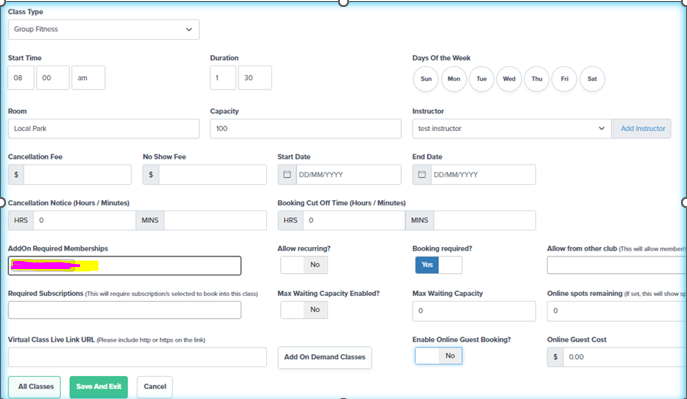
Click on Enable Online Guest Booking and leave the amount as zero. You will see that the Single Event toggle has now appeared for you.

Toggle on Enable Single Event and then choose the date. Click SAVE.

When you go back into the schedule settings you will see that there is now a corresponding unique URL for this event.
You are able to use this URL in your socials, on your website or email directly to prospects . Depending on your app settings, members will also be able to see this event to book directly through the app or your embedded timetable.

Comments
0 comments
Please sign in to leave a comment.