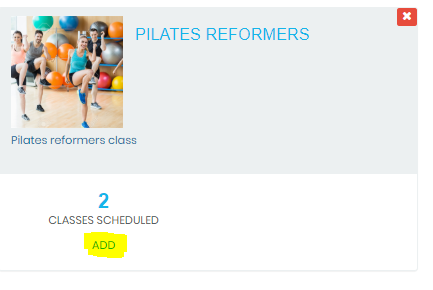
Find the class you want to schedule and click the ADD button
Set the time, duration and days that this class runs.
Enter the room, class capacity for bookings and select an instructor.
These fields are self-explanatory. If you set a booking cut off time it restricts app users from booking in within the time specified. You are able to over-ride this if booking through the PC.
The AddOn field is used for class restrictions. A pre-requisite for this function is that the AddOn Membership must already have been created in Membership Types and is an addon to a Paid In Full core or base membership. An addon membership is not a membership type in it's own right.
By inserting an AddOn membership type into this field you are determining that only those members who have purchased this addon will have priveleges to book into this class via the app. This can be over-ridden manually by you if you make a member booking through your PC.
Toggling the ''allow recurring'' button to yes will let members make a recurring booking into the future.
If this is a virtual class you can embed the link here. This is only visible to App users that book in.
If the app user has missed the class the On Demand link becomes visible (where one exists).
Click SAVE and EXIT or return to All Classes.
For scenario based examples of how this might work in practice refer to articles in the FAQ - MEMBERSHIP TYPES section.






Comments
0 comments
Please sign in to leave a comment.