
Navigate to the timetable using BOOKINGS tab and clicking the Group Fitness Timetable tile.
The screen will default to the current week Monday to Sunday and will only display the time slots where a class is scheduled. This is an interactive display, not a static display, meaning you can view and edit class participation through this screen.
The class icon shows the Class Name, Start Time, Duration and number of participants versus spots available.
 Click on the class to view participation.

Book a Member or Prospect into the class.
Click the BOOK icon to book a member/prospect from this screen and choose the correct icon.
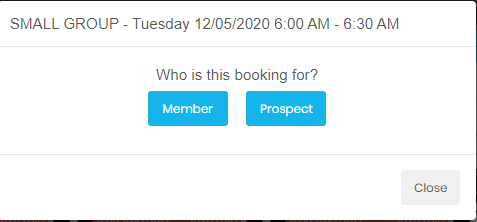
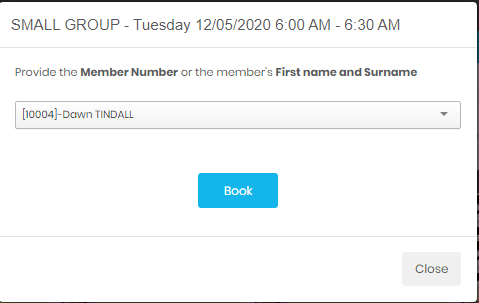
Choose a member and click BOOK.

Add a member to the Wait List
If the class is full the ''Add to Wait List'' button will be visible. Click on this button and process booking as normal. If you have sms enabled for your club's wait list this member will be notified should a vacancy occur and will now appear at the bottom of the participants list.
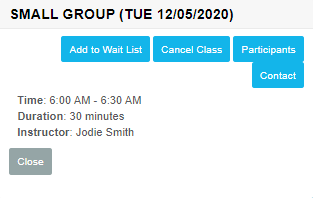
Choose a member
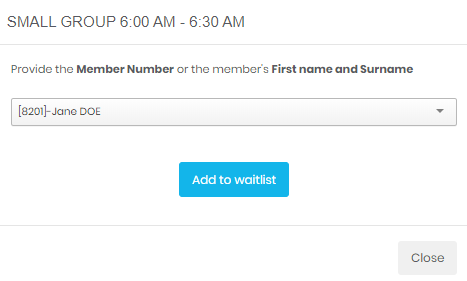
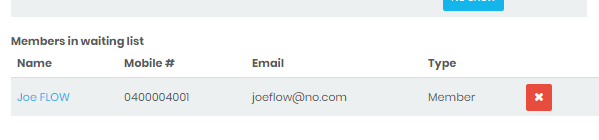
When a vacancy occurs you have the option to add them to the class manually by clicking the plus sign.

View/edit the class participants
Click the PARTICIPANTS icon. From here you can check them in, mark them as a no show or cancel their booking completely. You can also jump to the Member's detail screen by clicking on their name.
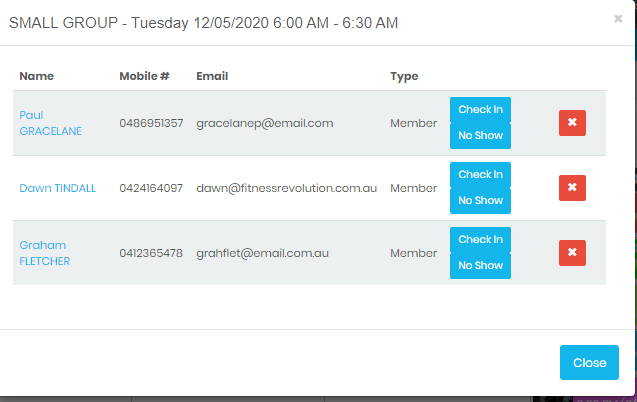
Contact Class Participants
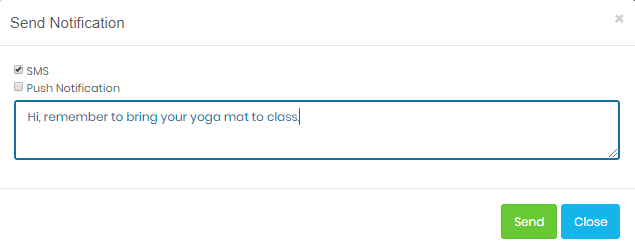
Click the CONTACT icon and you are presented with a Send Notification screen.
Cancel the class
Click the CANCEL CLASS button and you will be presented this box to both cancel the class and notify participants.

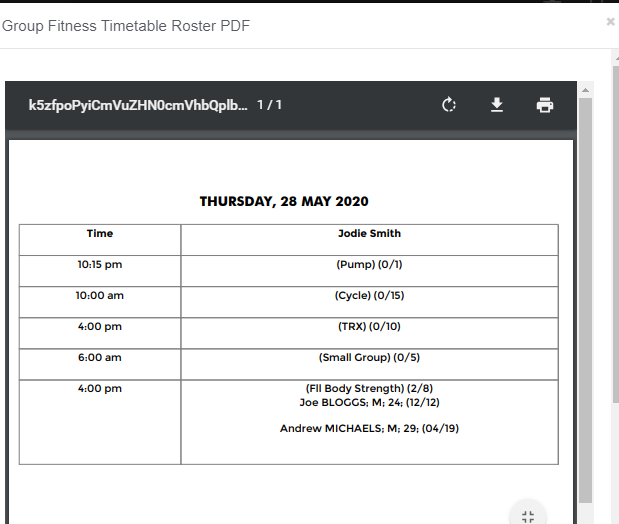
Printable Staff Roster
At the far right of your screen, click the PDF icon. Click the All Times button, select a trainer and click View. Clubfit will generate a printable roster.
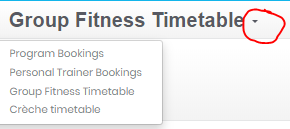
Navigation Tip : Once in the Group Fitness Timetable you can jump between timetables by clicking the down arrow and selecting another one .
Comments
0 comments
Please sign in to leave a comment.