
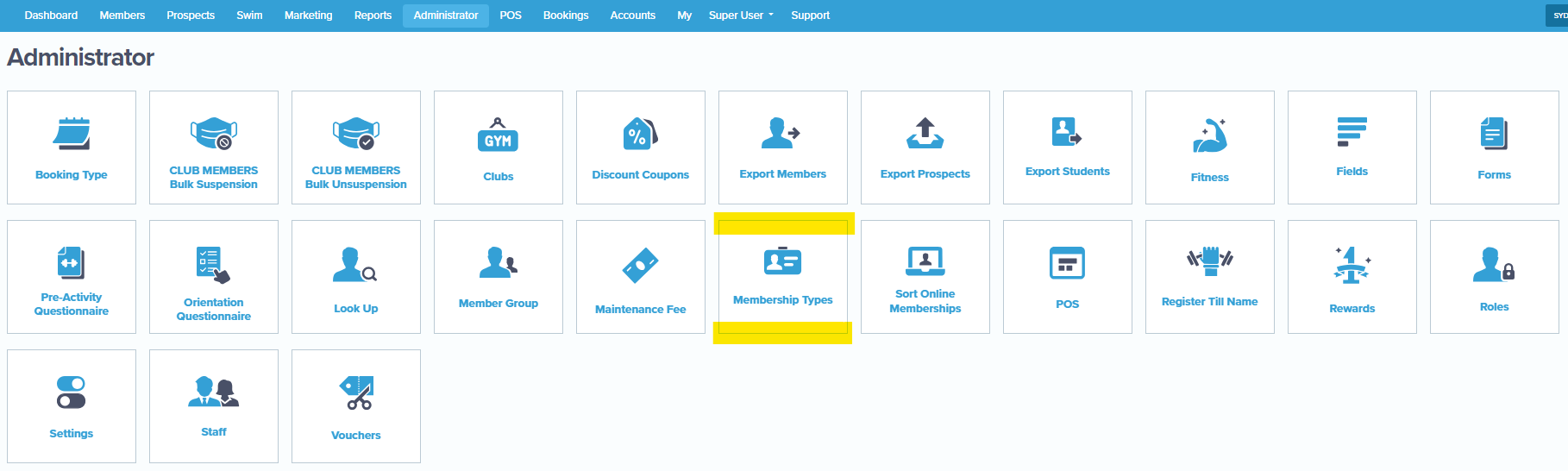
By creating a membership type, you are creating the "core" membership that clients will be signing up to.
Below are the key points in this training for consideration.
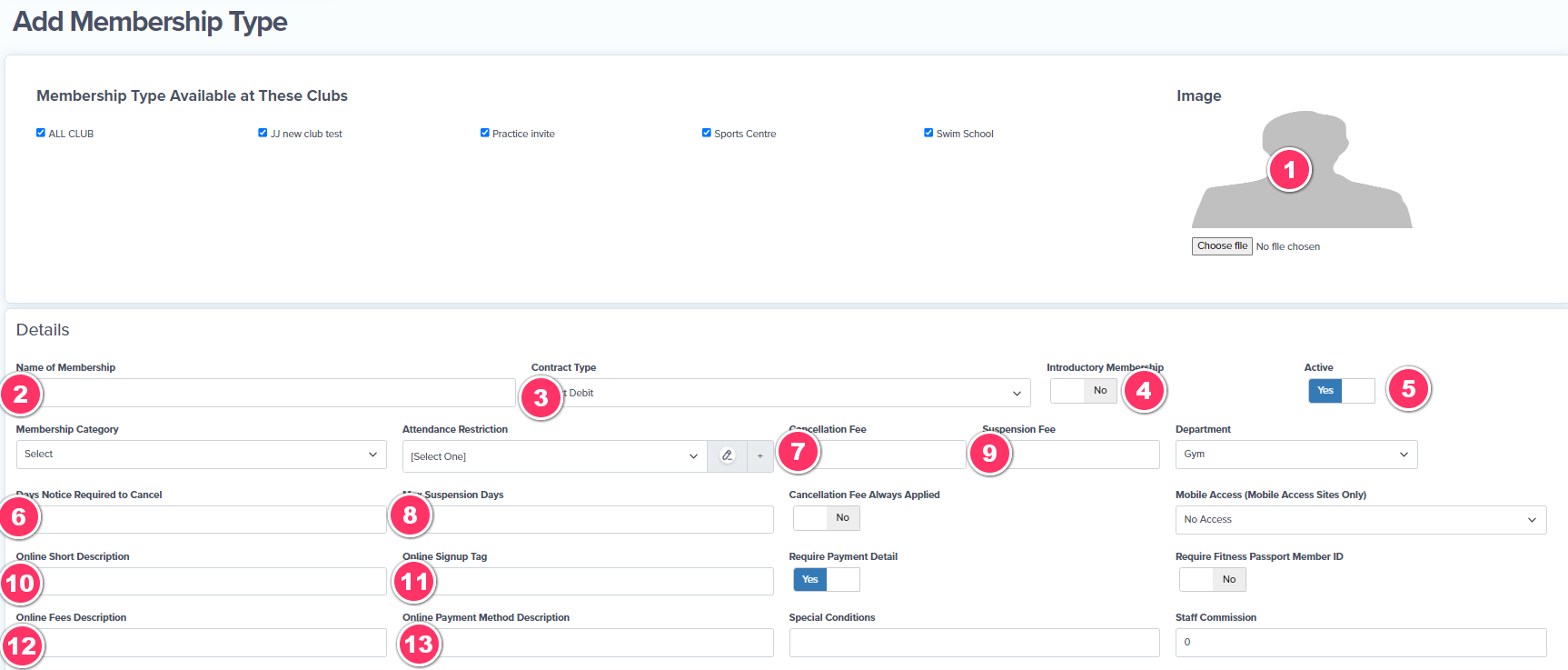

1. Membership Image
An image can be uploaded for each membership type. The system will use a default one until the club uploads their own.
For your reference the default image is

2. Name of membership
Insert the name of the membership type.
If there is a Paid In Full Membership that is called the same as a Direct Debit Membership it is recommended to put a DD or a PIF next to it so that when reporting they can be distinguished between each other.
example 12 Month Unlimited Membership PIF vs 12 Month Unlimited Membership DD
These are customer facing.
3. Contract Type
Direct Debit for Membership Types that are to be debited on a regular frequency
or Paid in Full for Membership Types that the full payment is taken up front.
4. Introductory membership
If this toggle is turned on then the Membership will be considered to be exactly that, an Introductory only membership.
This means that the member will only ever be able to sign up to it once, the system will validate if they have been on this membership type before and not allow them to sign up to it again.
An introductory membership would be if you wanted to offer a free 7 day trial or similar where you have a great deal that might expire after a certain duration. You would set this up as a PIF Membership Type.
5. Active / Inactive Toggle
Whilst you can delete a membership type it is highly recommended not to, especially if there has ever been active members on it. If you delete a membership type it deletes the data.
It is recommended to make the Membership Type "Active" or "Inactive"
Once the membership Type is made inactive it will no longer be visible to be purchased or sold. It will be moved from your list of active memberships to the inactive tab.
Old membership types can be made inactive to clean up the membership lists.
Foundation Membership types can be made inactive once a certain amount of members has been reached.
By making a Membership inactive nothing changes for the members that are on it, their DD will remain in place, new members wont be able to see it to purchase and staff will no longer be able to sell it.
You can make an inactive membership type active at any time.
6. Days notice required to cancel
If you have a cancellation notice requirement enter it in this field. Whatever you insert in this field will be the default number of days that the system will automatically display from the date of the cancellation request.
On the desktop your staff will be able to override the days required on a case by case scenario
7. Cancellation Fee
If you have a cancellation notice requirement you may also want to set the cancellation fee. Anything inserted in this field will also be a default that will automatically apply on cancellation.
You or your staff can override or remove this fee also on a case by case scenario when cancelling a member.
8. Suspension Days
Similar to the cancellation notice here you can insert how many days you will allow on a membership suspension or "freeze".
The amount of days is as per the calendar year.
Cancellation days given can also be overridden by a staff member case by case.
9. Suspension Fee
Similar to the cancellation fee, you can add a suspension fee that will default and automatically apply when suspending a member.
You or your staff can override or remove this fee also on a case by case scenario when suspending a member.
Suspensions can now be set up to take the fee on a weekly basis until made active if preferred.
The next settings are like shelf talkers for the membership type tiles on signing up, you can go to the test membership type and open up the unique URL to show the club. These tiles are customer facing so the club can insert additional comments such as "Best Offer" or "Highly Recommended"

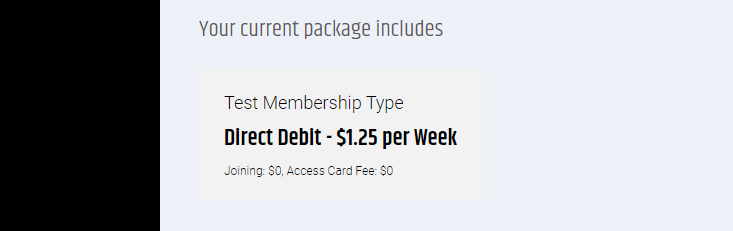
As the names imply, you would only use these fields for a membership type that is web-purchasable.
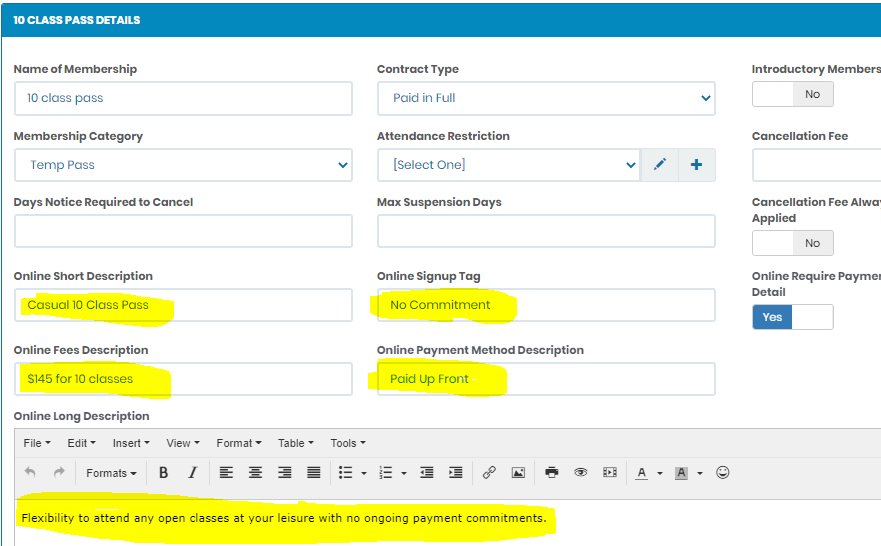
10. Online short description / 11. Online sign up tag and 13. Online payment method description
Online signup tag and payment method description appear here whilst the signup tag is a callout banner.
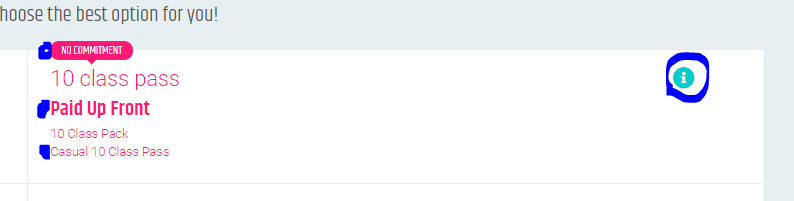
14. Online Long Description
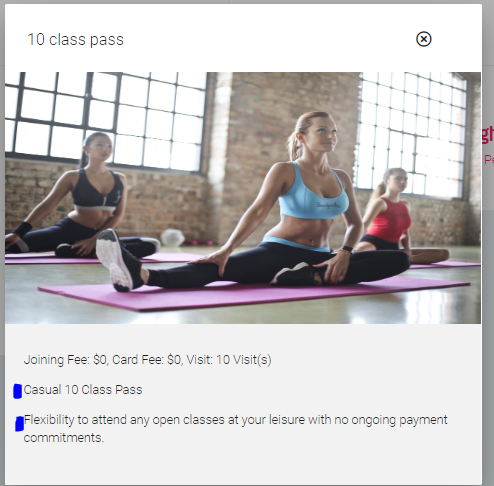
The description that comes up when the user clicks the information button includes the online short and long description.
This is where the club can add what it is that this membership entitles their members too.
Unlimited classes, Gym only etc, 2 classes per week as examples
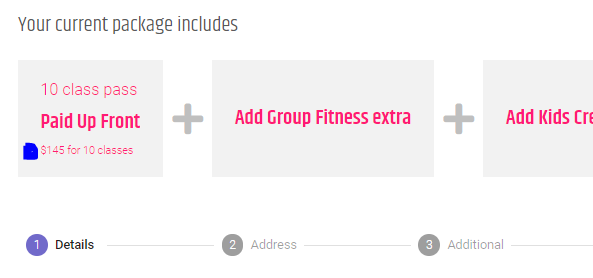
12. Online fees description
Online Fees Description appears once the user has clicked on the product tile.
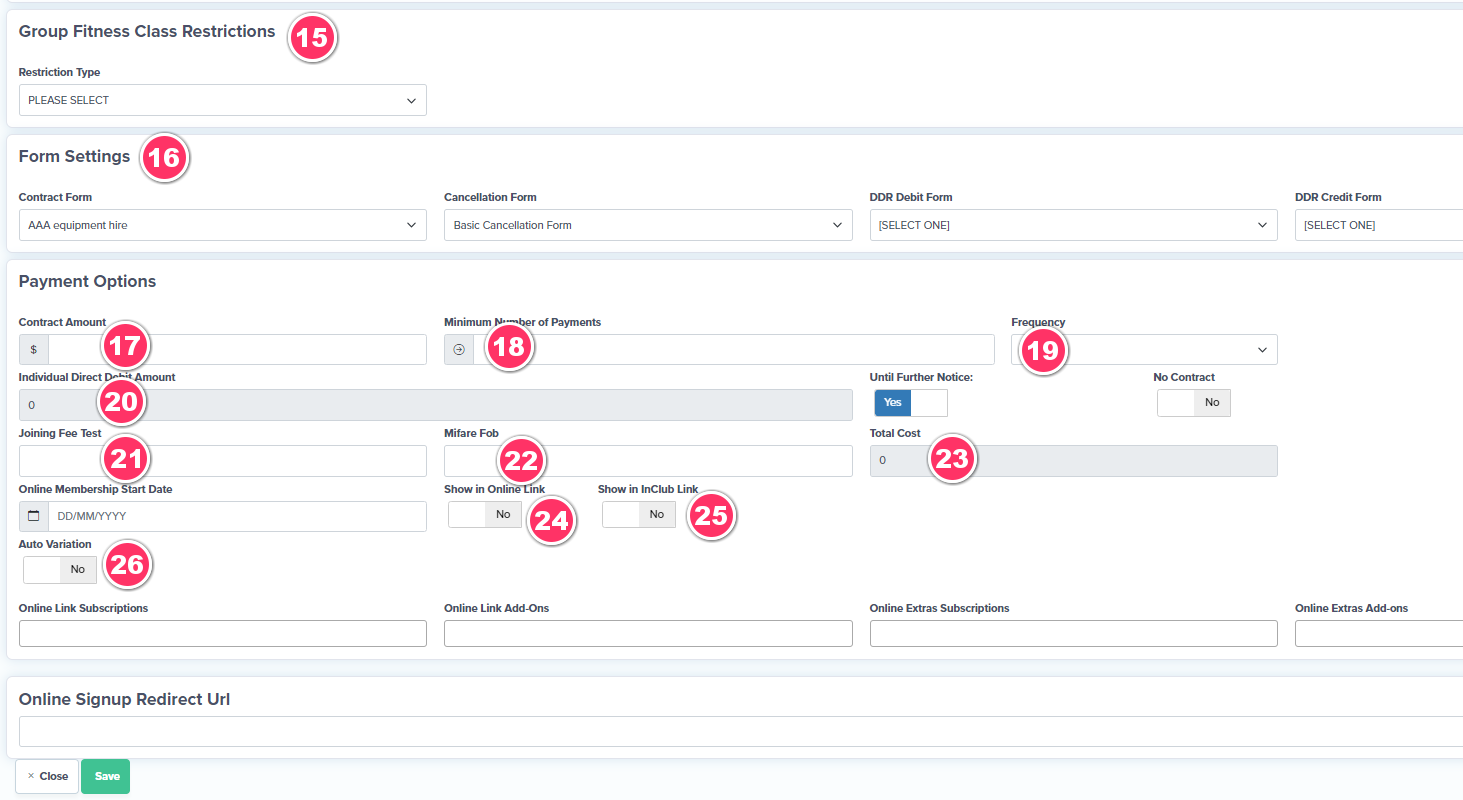
15. Class Restrictions
The reason that it is recommended to create your classes first before membership types is so that when you are creating your membership type at this point you can add in any class restrictions now instead of going back and forth creating the class to add to the restrictions.
There are a few options in setting up class restrictions
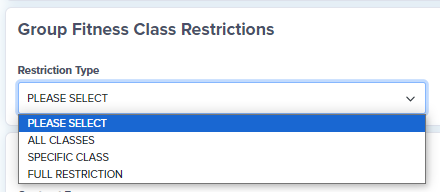
"Please select" is considered a "Full Restriction" and is the default setting.
"All Classes" - You can specify that a member can only do a any certain amount of classes per frequency.

"Specific Class" (With No Selection) - Is considered to be the Unlimited Class settings. This enables a member to be able to book in and attend any classes at anytime with no restrictions in place.
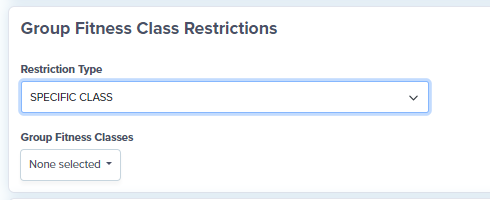
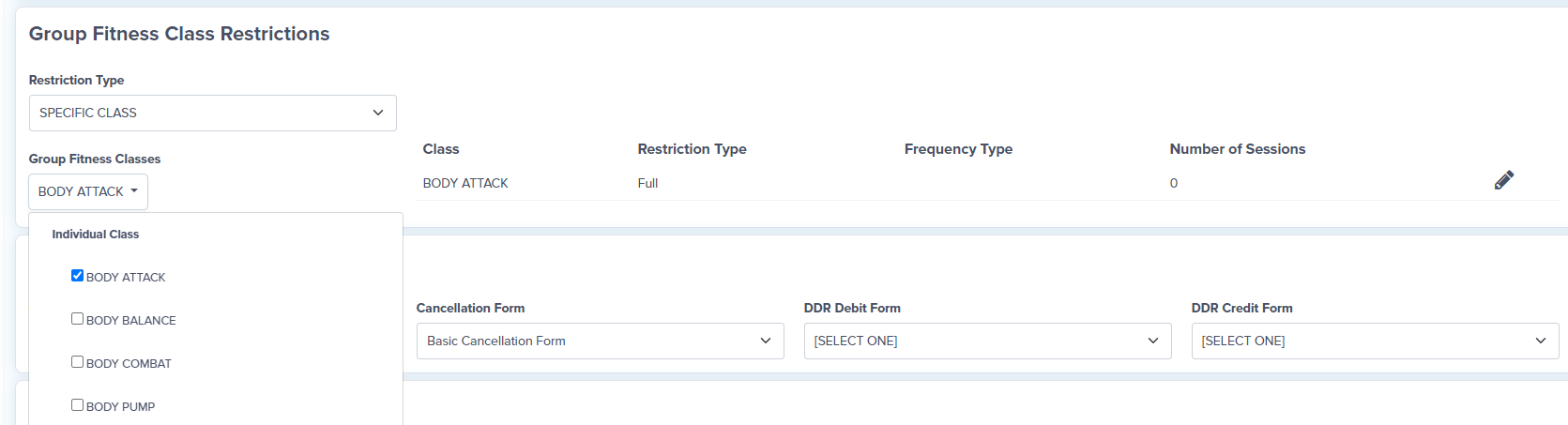
"Specific Class" (With Selections) - The Club can set a restriction for certain classes.
This setting would be used if they have as an example adult and junior classes and they do not want those on an adult membership to be able to book into junior classes and vice versa.
They want to allow the member to book into a certain class and not others
In the screenshot below the member would be able to book into all classes except for Body Attack.
OR
OR
They want to allow the member to book into a certain class but they are limited by how many times per frequency.
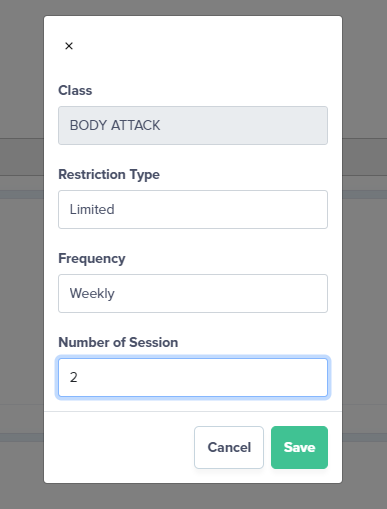
" Full restriction" - All class bookings are restricted.
This setting would be used if the membership type was a gym only access with no class bookings.
16. Form Settings
Nothing requires to be changed in form settings as their terms and conditions will have been uploaded under the basic contract as the default. If they have a specific terms and conditions for different membership types then this can be offered.
* Create two membership types and show the difference between paid in full and direct debit settings.
* Payment Options - Direct Debit Membership
17. Contract Amount - The exact amount to be debited
18. Minimum Number of Payments - The system will take the minimum amount of payments specified in this field.
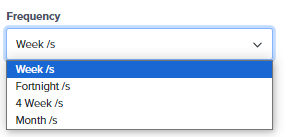
19. Frequency -
On-going Frequency
If it is an ongoing weekly billing membership until further notice it will take the first payment and continue each week in this example until the member requests to cancel or the club cancels them.

Set Frequency
Alternatively the club can set up a duration direct debit where the total contract amount is entered, with the minimum number of payments required. In the below example $500 is the contracted amount with a minimum of 26 fortnightly payments.

The system will debit 26 payments until further notice. The Fortnightly payment will continue unless the until further notice toggle is turned off. (only Clubfit Admin can do this at the request of the club).
In this case then the membership will expire after the 26th payment for renewal.
* Payment Options - Paid In Full
Membership Type settings are the same for Paid in Full until you come down to the payment details section.
Now you can add the total contract amount
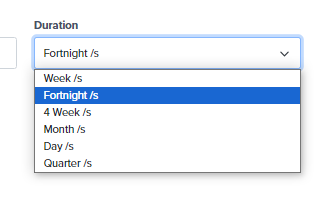
The "Type" - Duration / Visit or Session

Duration you can select how long the membership will go for before the membership expires
Visit - You can select how many "visits" the member can have into the club before it expires and set expiration days

Session - You can enter how many sessions the member can have, the cost per session to top up in the app (if required) once all sessions have been used up and the expiration days to use them.

20. Individual Direct Debit Amount
The system based on the above settings will automatically calculate the individial direct debit amount
21. Joining Fee and 22. Access Card Fee (descriptions can be edited)
Direct Debit Memberships if signing up online the system will add one or both of these costs to the first direct debit payment only and then the next payment will only consist of the individual direct debit payment.
In the club on a desktop signing a member up the staff will have flexibility as to whether to take these payments up front using cash / eft or CC or whether they go onto the members first direct debit.
Paid In Full Memberships the system will add both amounts to the total cost of the upfront payment if a cost is inserted in these fields. Leave blank if not required.
23. Total Cost - The total contracted cost for the membership
24. Show in Online link
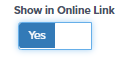
With the online link toggle on, this means that anyone of the public will be able to see and signup to this membership type. It will be visible wherever the club shares the memberships Unique URL at the bottom of the membership type or the Online External Links URL and through the app.
You will be able to show the club the external link in the next lesson.
Membership types that have the online toggle on can be seen at a glance within the membership type directory.
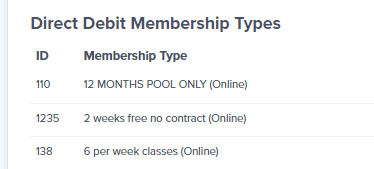
If you had a free staff membership then the online toggle would be kept off so that the general public could not sign up to it.
25. Show in InClub Link
The in Club toggle generally would be on for most membership types.
This enables staff to sell this membership type to a client at reception In the Club on the desktop.
26. Auto Variation
If a club would like to do a special promotion for all online sign ups they can do so by clicking the online auto variation toggle on.

When a new client signs up online, the system will create a payment variation based on the rules set up in these fields. It will also populate that the membership has a payment variation in place on the contract - terms and conditions the client will agree to and in this example after the 30th day from signing up the individual direct debit amount will revert to the original.
When creating a membership type you are given the option to make it web purchasable, when the membership starts,if there are any free days or payment allowances or a specific payment date.
ADMINISTRATION >> MEMBERSHIP TYPES >> ADD NEW
By turning the "Is Web Purchasable" toggle on you are able to edit start date and payment date allowances.
Scroll down towards the bottom of the membership type settings.
Only one field can be used at a time.
In the "Payment Options" section you will see the following fields :-
The Online Membership Start Date overrides all settings.
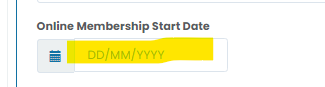
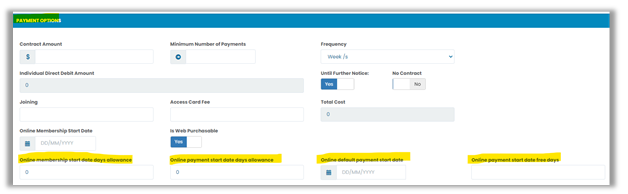
By changing the online membership start date days allowance you are allowing members who sign up online to have a certain number of forward dated days to commence the membership start date.

When a member joins your Club and registers for a membership they will be given the option to start today or in "7" days time.
By changing the online payment start date days allowance you are allowing members who sign up online to have a certain number of forward dated days in which the payment start date commences.

In the video below we have the online payment start days allowance setting to "7"
When a member joins your Club and registers for a membership they will be given the option to start their first payment from today or in "7" days time.
The online default payment start date will be the date the system will default the start payment date to.

In the video below we have set the online default payment setting to 28 days ahead.
When a member joins your Club and registers for a membership their default payment date will be in 28 days.
Online payment start date free days allows members to have a certain amount of free days before the first payment is taken.

In the video below we have set the online payment start days free days setting to "14"
For eg. if a member signs up today and the qty is set to 14, the member can get 14 days free and their first payment is taken in 14 days time.
Comments
0 comments
Please sign in to leave a comment.